Blue Ledger logoBLUE LEDGER
YOUR SHOP, WITH YOU

A mobile POS app for shop owners and staff in Kenya.

Keep an eye on your business when you are away from the counter, and give staff a way to work on the shop floor. Blue Ledger mobile brings shop visibility, sales, invoices and quotations to a phone within the same business system.

Explore pricing & setup
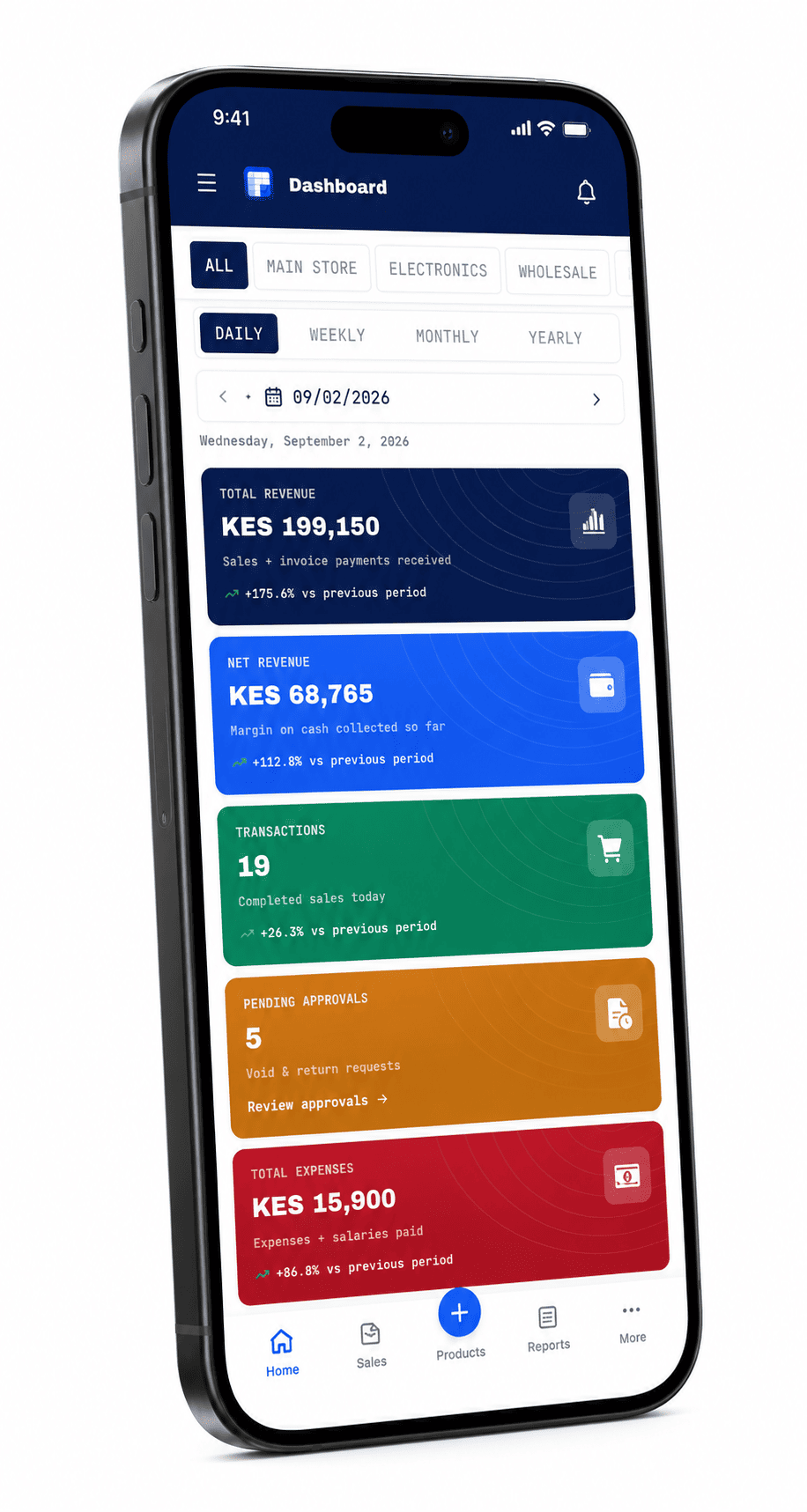
Blue Ledger mobile POS dashboard on a phone showing shop sales and business activity
Blue Ledger mobile POS dashboard on a phone showing shop sales and business activity.
  • Shop visibility from a phone
  • Sales, invoices and quotations
  • Stock checks and pending approvals
01

Check the shop when you are away from it.

A shop owner can use the mobile view to review sales, stock, cash and pending approvals across branches. This gives you a way to check the records available to your account without returning to the counter computer. Data freshness depends on branches sending their changes to the cloud.

  • Review shop activity from a connected phone.
  • Check stock and sales information available to your role.
  • Keep an eye on pending requests that need a manager's attention.
02

Bring a sales workflow onto the shop floor.

Staff can look up a product's stock and work with the mobile till while helping a customer. Mobile sales, invoices and quotations connect to the same business system as the desktop POS. Use a walkthrough to confirm the specific checkout, receipt and device workflow your team needs.

  • Look up products and check available stock.
  • Create sales, invoices and quotations from the phone.
  • Work within the prices, approvals and permissions of the business account.
03

Give mobile users the access their work requires.

An owner's view and a cashier's view have different purposes. Role-based permissions help keep business reports, settings and sensitive actions with the appropriate people. Discuss who will use a phone, what each person needs to do, and which approvals should reach a manager.

  • Plan access around the owner, manager and cashier roles.
  • Review how sensitive actions move through approvals.
  • Confirm your phone, connectivity and receipt requirements with the team.

Choose the mobile workflow you need.

An owner checking a branch and a cashier serving a customer can use the same system in different ways.

  1. STEP 1

    Set the role

    Confirm whether the phone is for owner visibility, manager approvals or staff sales, and review permissions.

  2. STEP 2

    Try the task

    Look up stock, review an approval, or create a sample sale, invoice or quotation in the walkthrough.

  3. STEP 3

    Check the connection

    See how synced branch activity appears on the phone and confirm your device and receipt setup.

Questions about mobile pos.

Can I check shop sales from my phone?

Yes. The mobile view supports shop sales, stock, cash and pending approvals. What you can see depends on your role and the branch data that has synced.

Can staff make sales from the phone?

Blue Ledger mobile supports sales, invoices and quotations, as well as product stock checks. Confirm the checkout and receipt workflow on your intended device during a demo.

Which phone should I use?

Contact the team to check your intended device, connectivity and any printing requirements. Ask for the mobile workflow to be demonstrated on the type of phone your team will use.

Does mobile visibility replace the offline desktop POS?

The mobile and desktop views serve connected parts of the same business. The Windows desktop can record local sales offline; a phone's remote view needs synced records and a connection to see the latest branch activity.

See this workflow in your shop.

Talk to the Blue Ledger team about your setup and arrange a walkthrough with the tasks your staff use every day.