
Blue Ledger logoBLUE LEDGER
SELL THROUGH INTERNET OUTAGES

An offline POS system for shops in Kenya.

A dropped connection should not stop a customer at the till. Blue Ledger runs on your Windows computer, records sales in a local ledger, and queues changes for cloud sync when your connection returns.

Explore pricing & setup
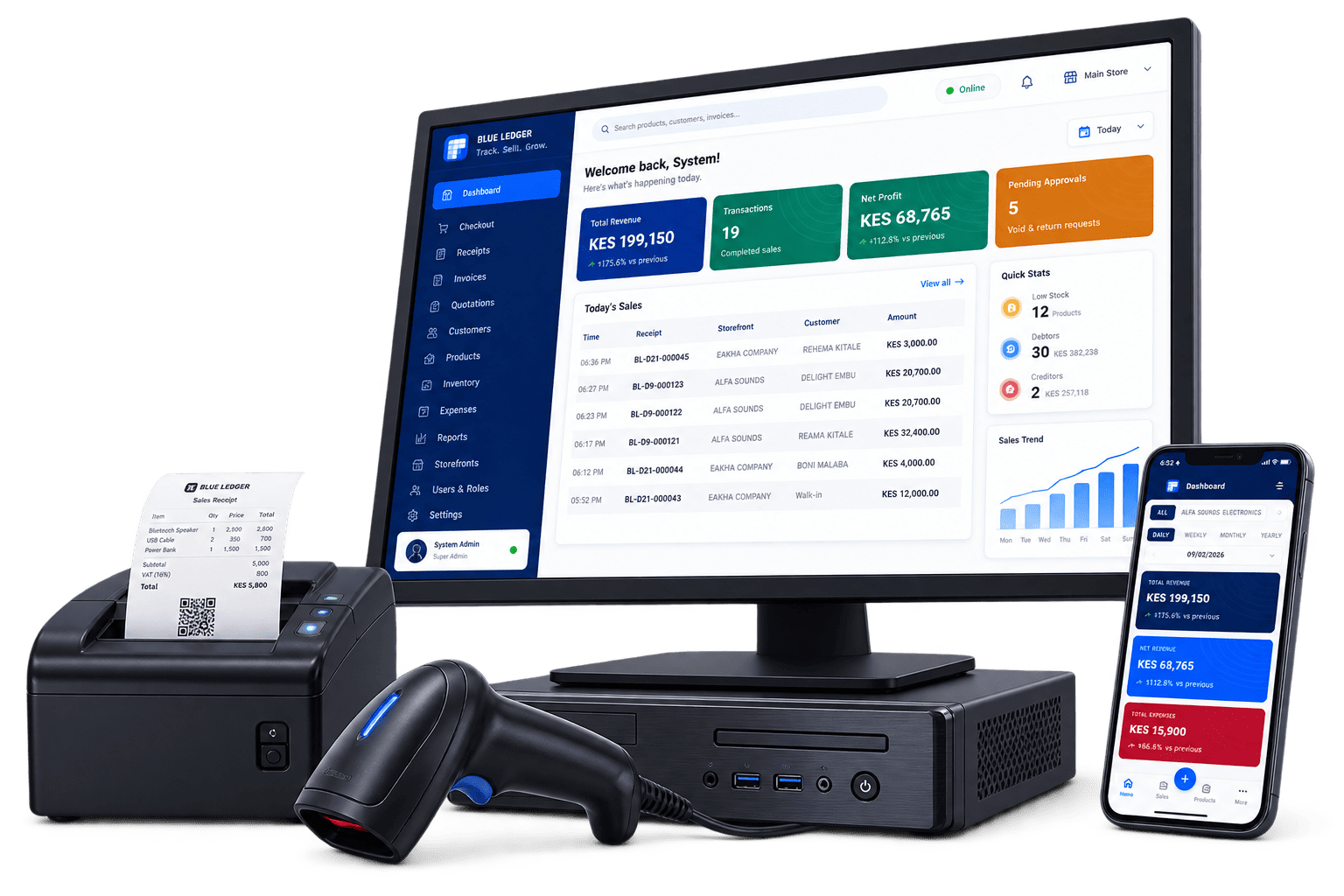
Blue Ledger offline POS on a Windows counter with a receipt printer, barcode scanner and phone
Blue Ledger offline POS on a Windows counter with a receipt printer, barcode scanner and phone.
  • Checkout on your Windows computer
  • Local sales, stock and receipt records
  • Cloud sync when you reconnect
01

Keep the counter moving without Wi-Fi.

For a Kenyan shop dealing with unreliable internet, the important question is what a cashier can actually finish during an outage. Blue Ledger keeps checkout, local inventory records, receipts and local reports on the counter computer. Your staff can continue working with the records already available there.

  • Record a sale and keep its receipt in the local ledger.
  • Print receipts with a compatible ESC/POS thermal printer.
  • Check local stock and review the counter's recorded sales.
02

Reconnect, then catch the rest of the business up.

Changes made offline wait in a visible sync queue. When internet returns, Blue Ledger sends pending changes to the cloud and retries failed syncs. This connects the desktop counter to your wider business without making every sale wait for a network response.

  • Review pending changes so you can see what still needs to sync.
  • Let remote views catch up after a branch reconnects.
  • Use the inventory and branch workflows alongside offline checkout.
03

Start with a counter setup your staff can use.

Blue Ledger runs on a Windows PC or laptop. During a walkthrough, use sample products to see a sale completed with the internet disconnected, then reconnect and check the sync queue. Test your printer and the tasks your cashier handles before moving your live counter across.

  • Review your Windows computer and receipt printer with the team.
  • Bring your product catalogue across using the supported import workflow.
  • Set staff roles and practise the checkout and receipt process.

What happens when the internet drops?

Follow one sale from the counter to the cloud.

  1. STEP 1

    Make the sale

    The cashier completes checkout on the Windows counter using the local product and stock records.

  2. STEP 2

    Keep the record

    The sale and receipt stay in the local ledger. Pending changes wait for an internet connection.

  3. STEP 3

    Sync after reconnecting

    The queue sends changes when the counter is online again, allowing connected views to catch up.

Questions about offline pos.

Does the desktop POS need internet for every sale?

No. After setup, Blue Ledger records desktop checkout, receipts and local inventory activity on the Windows computer. Pending changes sync when the counter reconnects.

Can I print a receipt while offline?

Yes, with a compatible ESC/POS thermal printer connected to the counter. Test the printer connection during setup. Sending a receipt through WhatsApp or email requires the relevant online connection.

Will the phone dashboard show an offline branch's newest sales?

Remote views depend on data reaching the cloud. A disconnected counter's pending changes need to sync before those changes can appear on a connected phone.

Can I see offline selling in a demo?

Yes. Ask for a walkthrough using sample products, including checkout without internet, a printed receipt if you use one, and the sync queue after reconnecting.

See this workflow in your shop.

Talk to the Blue Ledger team about your setup and arrange a walkthrough with the tasks your staff use every day.